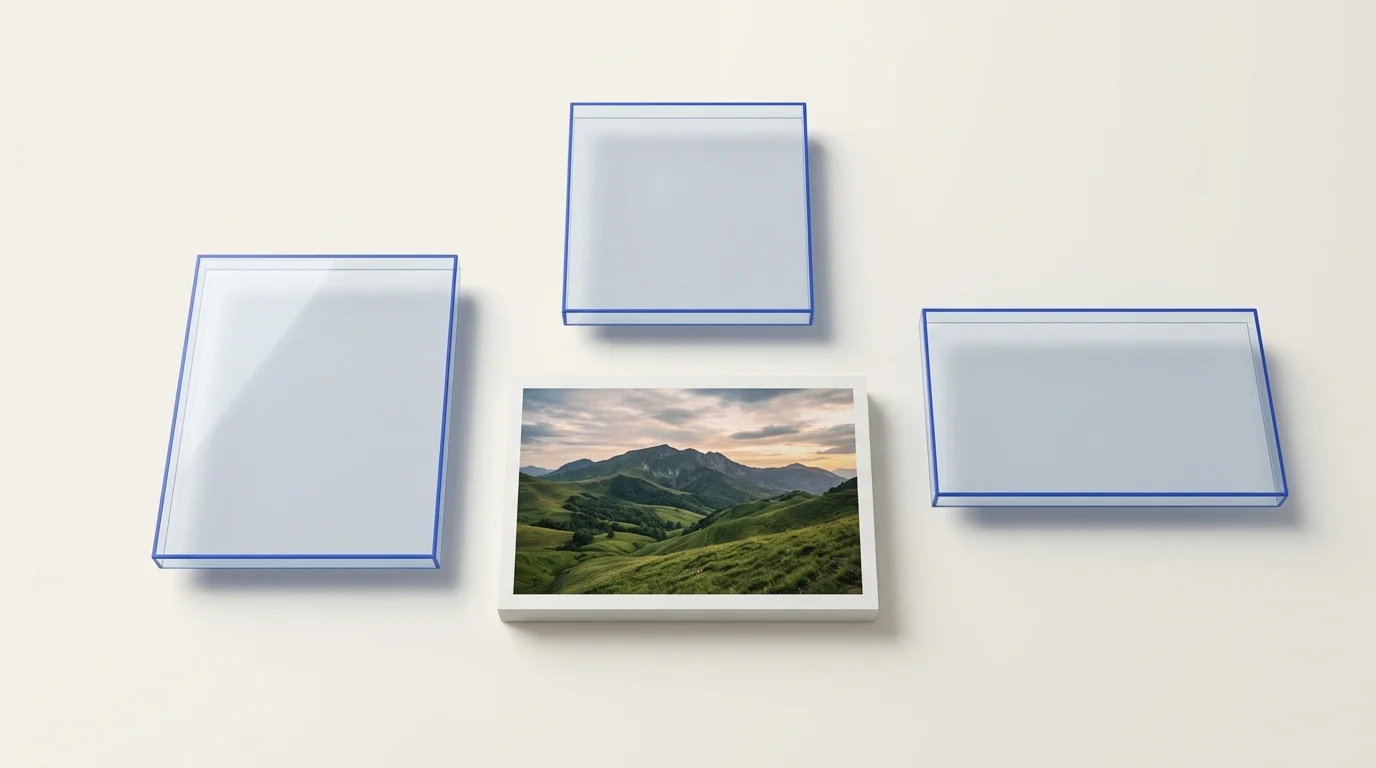
Why the same image can look different across social platforms
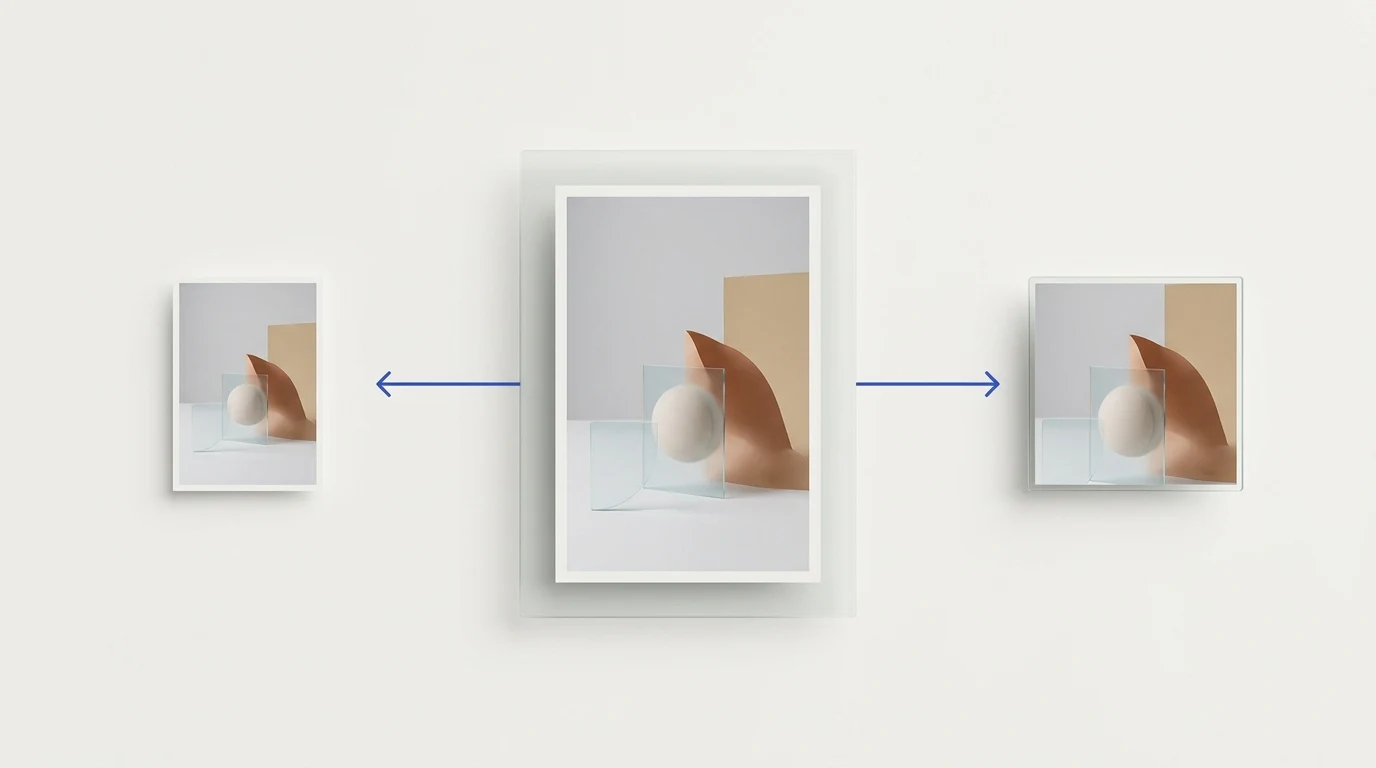
A social image may appear in a feed, profile preview, story, reel, carousel, or advertisement. Those placements do not always use the same frame. An image that fits one placement can be cropped or previewed differently in another, so there is no single dimension that guarantees the same framing everywhere.
Start by identifying the exact destination for the image. Check the platform's current upload guidance and preview the result in the publishing interface. Separate organic posts from ads because advertising placements can have different specifications.
Instagram photos and aspect ratio
Instagram may crop a photo when its aspect ratio falls outside the supported range, and a separate preview can use a different frame. This varies across photo uploads, stories, reels, carousels, profile previews, and advertising placements. Review the current Instagram photo and video upload guidance and preview the intended placement before publishing.
If the subject is near an edge, keep the important detail inside the part of the image that will remain visible. A feed preview is not a promise that the profile tile or another placement will show the same frame.
X photos: check the single-photo behavior
X Help says a single photo with a standard aspect ratio between 2:1 and 3:4 displays in full in a post. That guidance is specifically about a single photo in an organic post; X Ads and other media formats have separate creative specifications. See X's current photo-posting guidance and the relevant ad specification when preparing paid creative.
Facebook images depend on the placement
Facebook content can appear in several surfaces and placements. A feed post, story, cover image, link preview, and ad creative may have different display areas. Check the current Meta publishing or advertising guidance for the destination you are using, then inspect its preview. Avoid relying on an old universal pixel-size list.
Prepare a separate output when the frame changes
- Write down the destination and placement for each version.
- Check the platform's current accepted aspect ratio and file guidance.
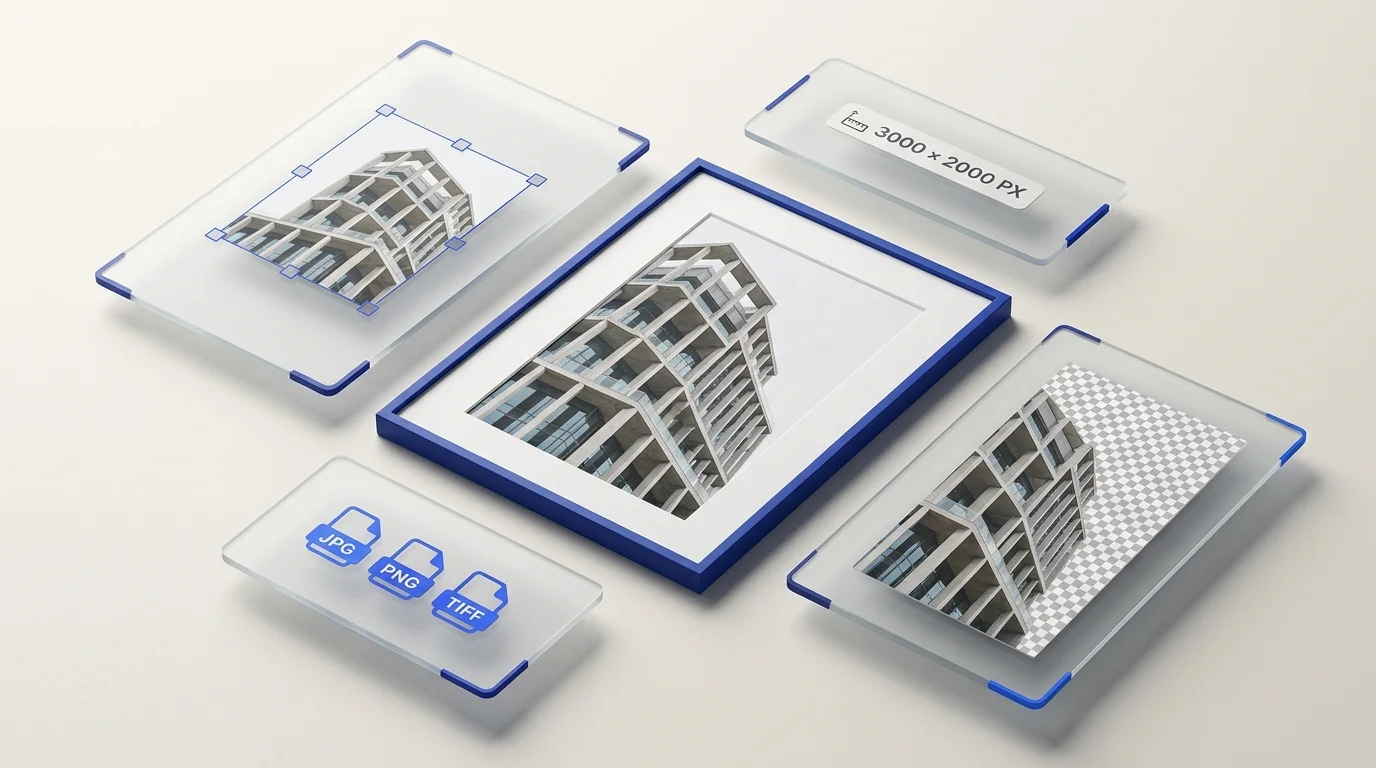
- Decide whether the image should be cropped, padded, or kept at its original ratio. Resizing changes pixel dimensions; it does not choose a new composition.
- Preview each output in the destination interface and adjust the framing if needed.
If one source needs several destination dimensions, Preparya's batch image resizer can create selected outputs for multiple source images. Its resize targets use exact dimensions and do not provide manual cropping or padding. Choose target dimensions with the intended aspect ratio to avoid stretching, or crop and prepare the composition separately before resizing.
Use the tool that matches the task
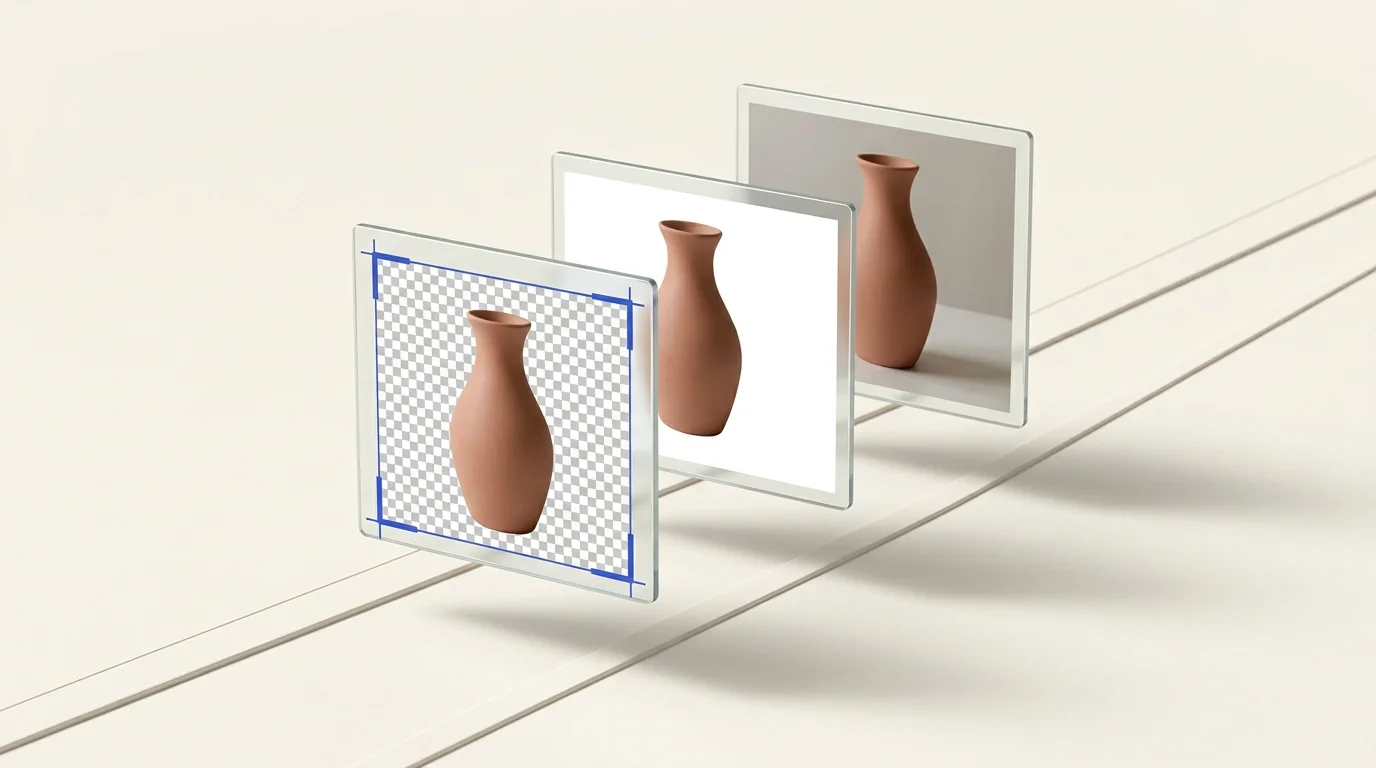
Use resizing to change output dimensions, cropping to change the visible frame, and background removal when the original surroundings should become transparent. Preparya offers batch resizing and background removal in its workspace; it does not automatically make one image compliant with every social placement. Review each exported file before posting.
For a persistent platform reference, use the platforms' own help pages because supported formats and display behavior can change. Preparya's guides to Instagram cropping and crop versus resize explain the related image-preparation decisions.