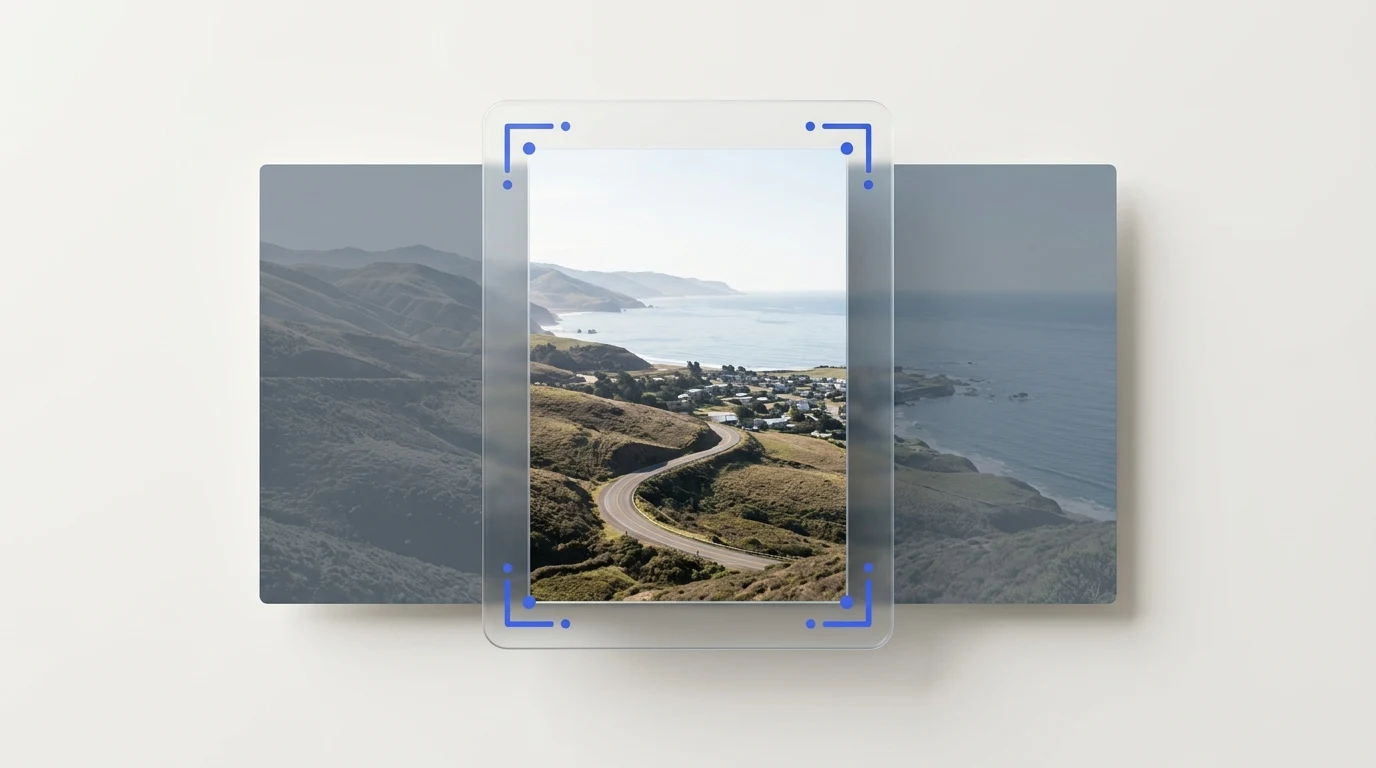
Why Instagram may crop a photo
A photo can be cropped when its shape falls outside the range supported for the destination, or when a different preview uses a different frame. Feed photos, carousels, stories, reels, profile previews, and ads should not be assumed to share one crop rule.
Instagram may crop a photo when its aspect ratio falls outside a supported range, and other previews can use a different frame. The exact behavior can vary across feed photos, carousels, stories, reels, profile previews, and ads. Check the current Instagram upload guidance for the destination you are preparing instead of relying on an old universal dimension.
Check the destination before changing the image
- Confirm whether the image is for a feed photo, carousel, story, reel cover, profile preview, or ad.
- Look at the crop in Instagram's publishing preview, especially near the top, bottom, and sides.
- Keep text, faces, and product details away from edges that could be clipped in another preview.
- For ads, use the current specification for the exact placement; organic-post recommendations may not apply.
Choose whether to crop, pad, or keep the original frame
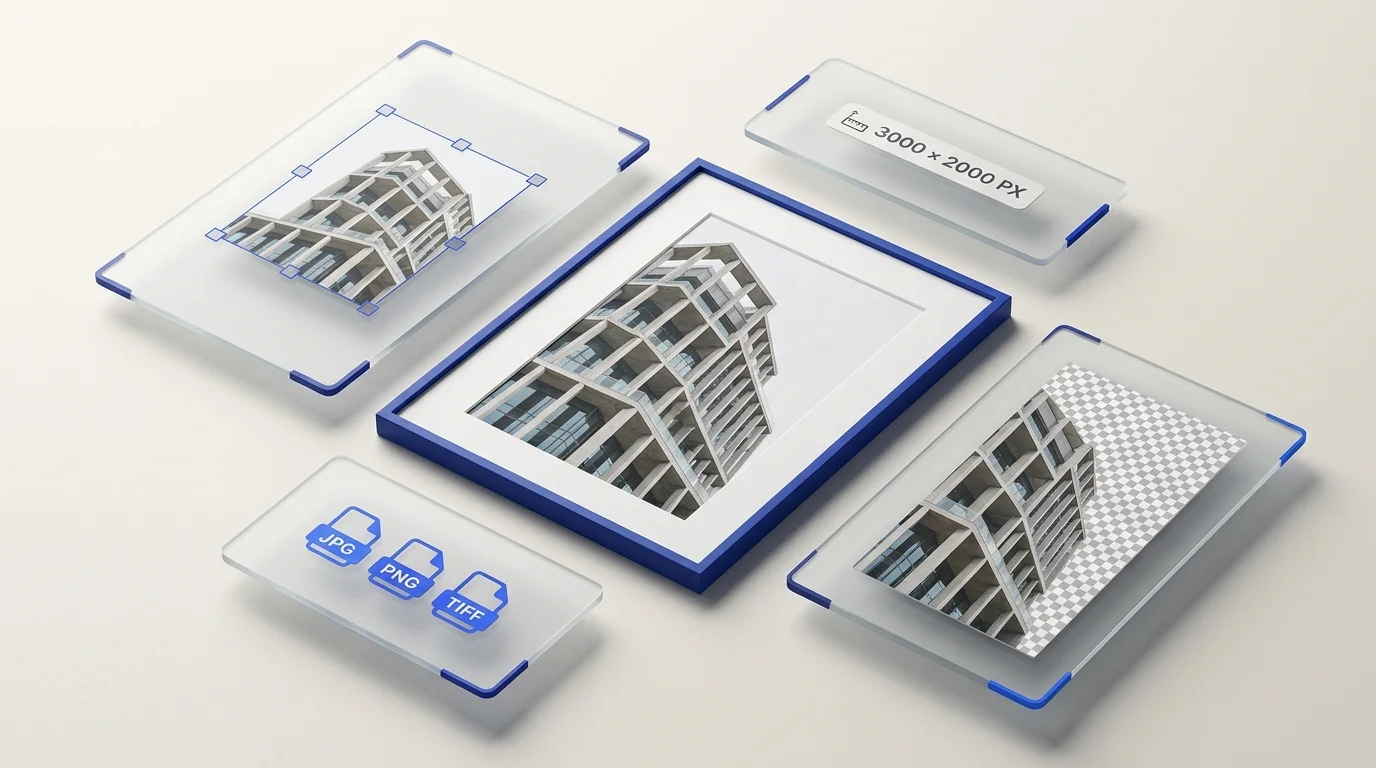
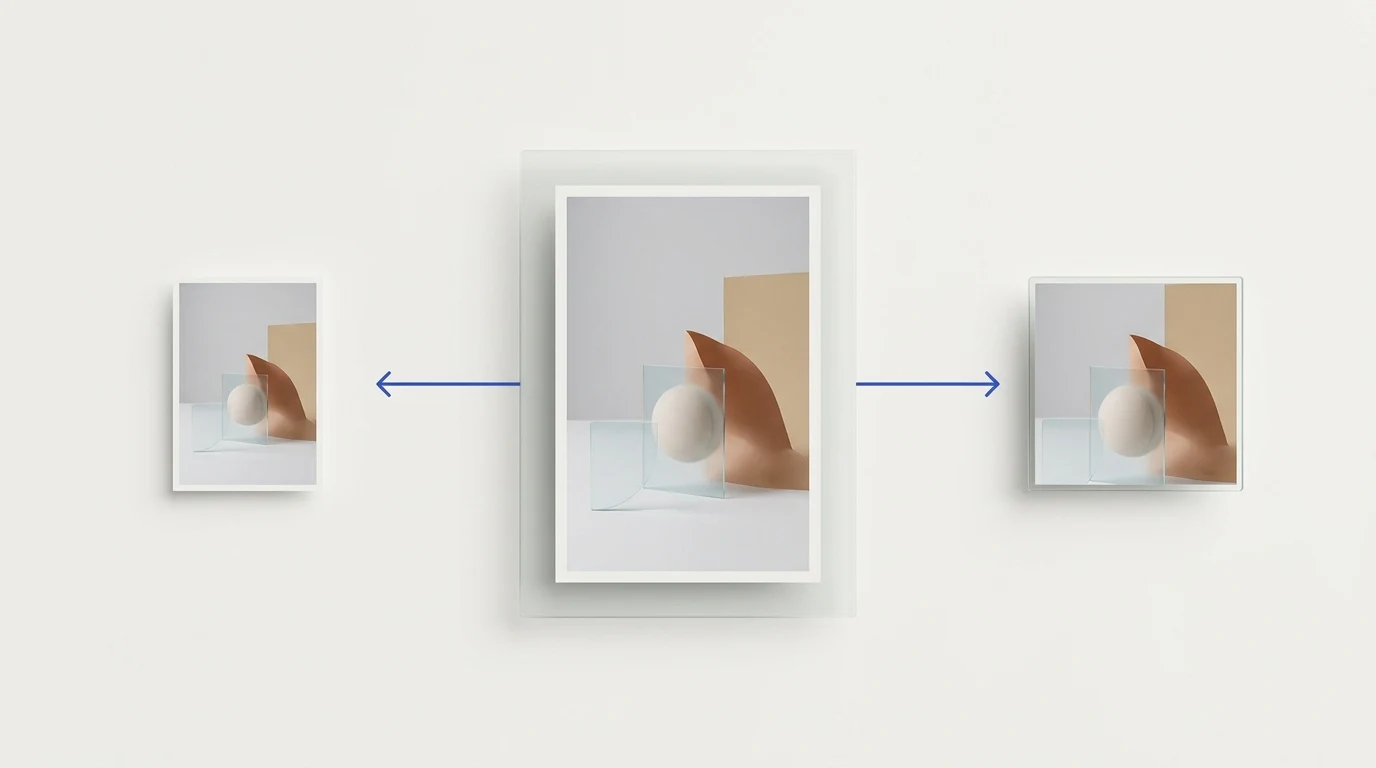
Cropping removes part of the image and changes its composition. Padding keeps the full image but adds space around it. Resizing changes pixel dimensions. These actions solve different problems, so choose based on what must remain visible.
If you crop, inspect the result at the final aspect ratio before exporting. If the full image must remain visible, use a canvas with the desired ratio in an editor that supports padding. Resizing alone does not make a mismatched composition fit without changing its appearance.
Prepare multiple destination sizes
When several images need the same set of dimensions, Preparya can apply selected resize targets to multiple source images in one workflow. The service creates the exact dimensions selected; it does not provide a manual crop or padding step. If source and target ratios differ, prepare the frame first or select a matching ratio so the image is not stretched.
Use Preparya's batch image resizer for dimension changes. For a broader overview of platform-specific image preparation, see preparing images for Facebook, X, and Instagram.
Review before publishing
Platform interfaces can change, and a preview may differ by placement. Check the latest platform help, review the image in the publishing flow, and keep an original copy so you can make another version without repeatedly resizing an already compressed export.