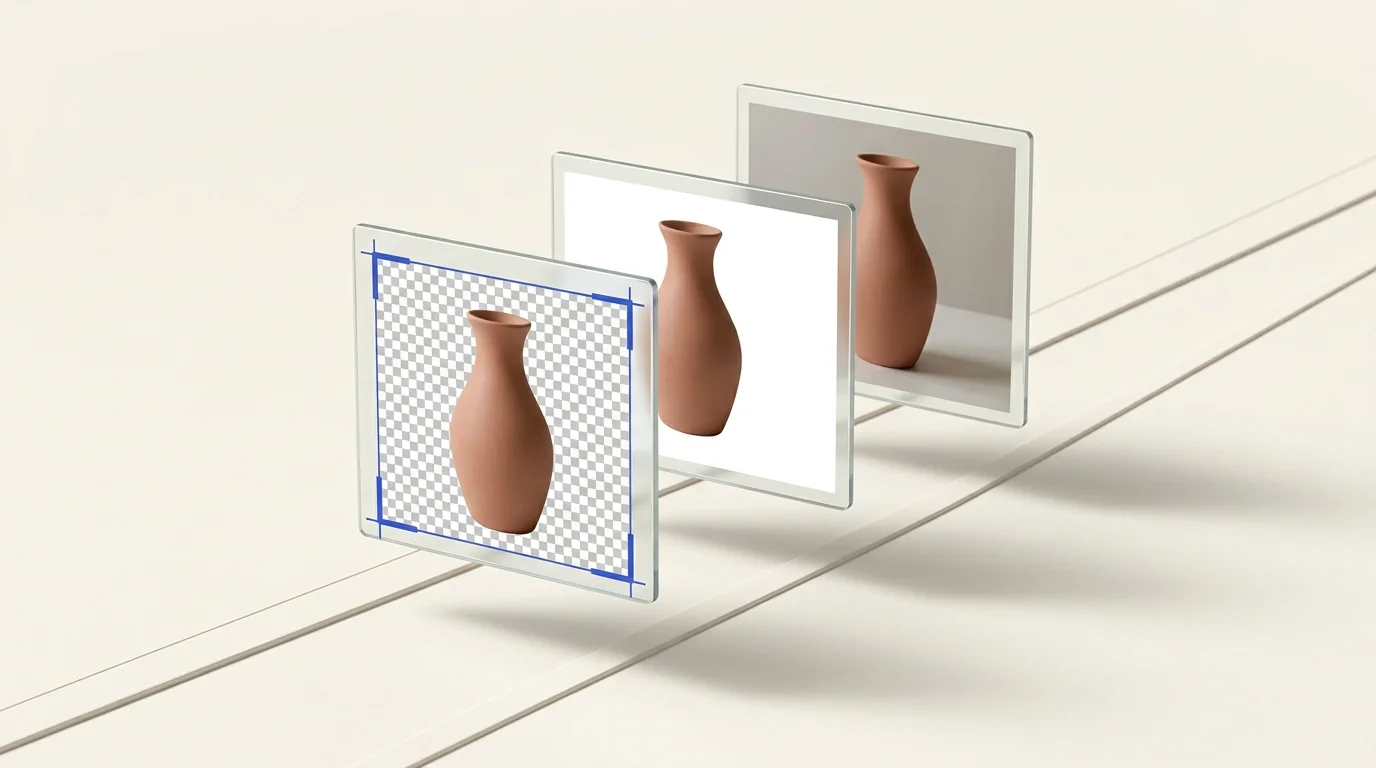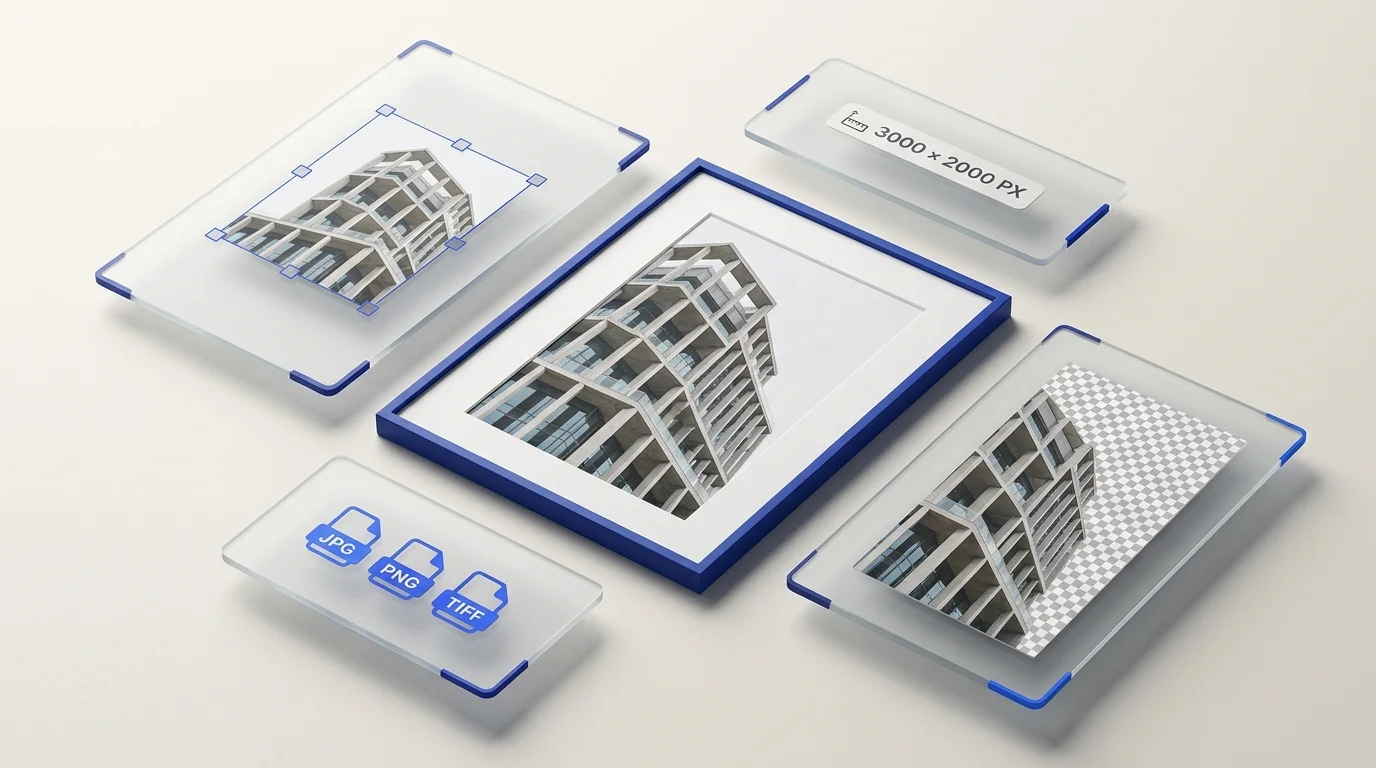

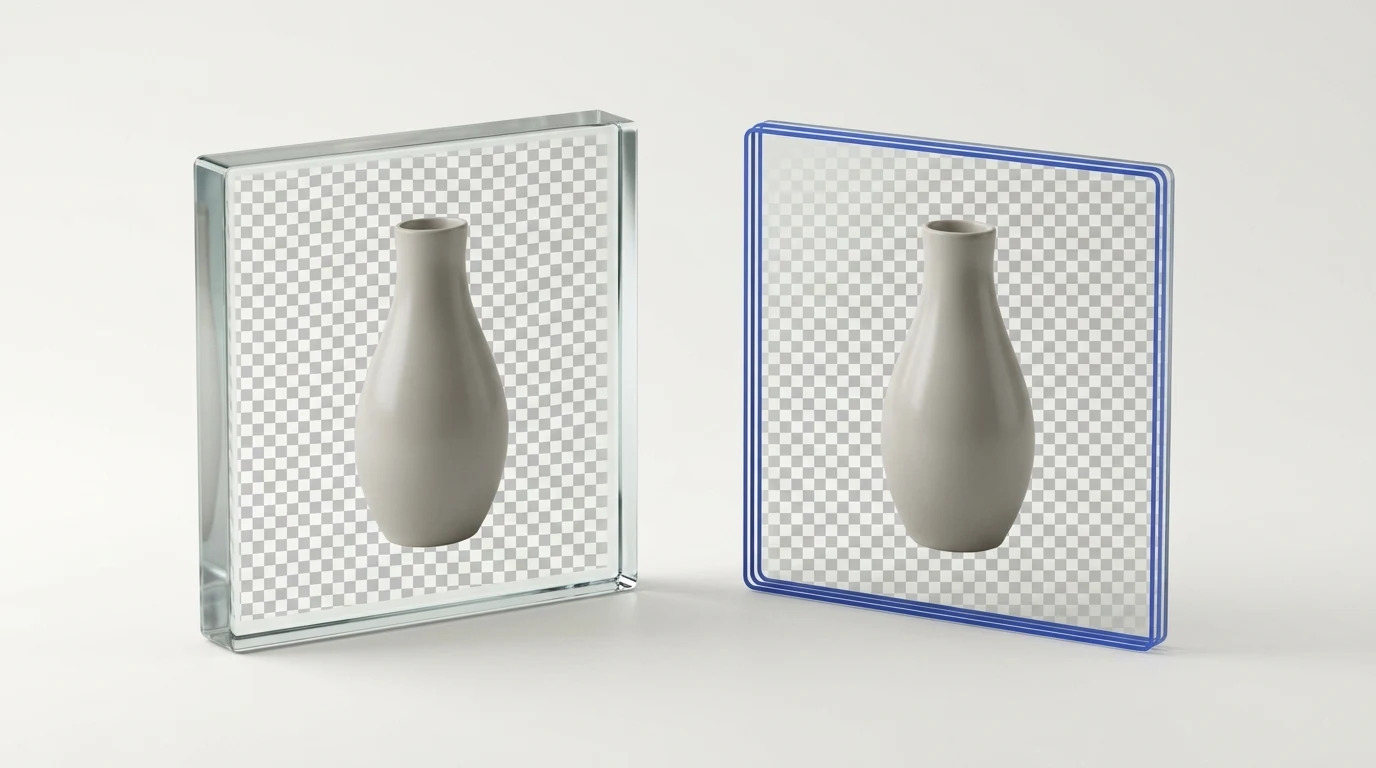
PNG and WebP can both store transparency
PNG is a lossless raster format that supports alpha transparency, making it a dependable choice for graphics and cutouts that need clean edges or must remain compatible with a particular publishing system. WebP supports both lossy and lossless image encoding and can also include transparency. Which file is smaller depends on the image, encoder settings, and output quality; no fixed saving applies to every file.
Google's WebP format documentation describes its lossy and lossless modes and transparency support. Treat codec comparisons as starting points, then inspect the files you will actually use.
When PNG is a practical choice
- Use PNG when the destination requires PNG or you need a lossless output from the current conversion step.
- Use it for logos, interface graphics, and cutouts where edges or transparency need careful visual review.
- Check the receiving platform's accepted format and size limits before upload.
When WebP is a practical choice
- Consider WebP when the destination supports it and you want to compare its file size and appearance with your PNG.
- Choose lossy or lossless encoding based on the required visual fidelity and file-size tradeoff.
- Check how transparency and fine edges look against both light and dark backgrounds.
Compare the actual output
Use the same source image to create candidate files, then compare dimensions, file size, transparency, and visible detail at the size where the image will appear. Fine hair, soft shadows, gradients, and small text can reveal differences that are hard to see in a thumbnail. A format change cannot recover detail already lost in the source.
For a wider comparison of modern image formats, see AVIF and WebP. Preparya's format converter offers only formats available in its current image-processing runtime; check its options before starting a batch. If you also need to change pixel dimensions, use the batch image resizer.
Keep transparency through the workflow
A transparent image can appear with a dark or checkerboard preview background in some applications. Confirm the alpha channel in the destination where it will be used. Avoid flattening the image onto white unless that background is part of the intended design.